'%20fill-rule='evenodd'%20d='M171.52-16.97H86.06q-35.76%200-60.91-25.15Q0-67.27%200-103.03q0-35.15%2025.15-60.61%2025.15-25.45%2060.91-25.45%2035.15%200%2060.3%2025.45%2025.16%2025.46%2025.16%2060.61v86.06M86.06-146.06q-18.18%200-30.61%2012.73-12.42%2012.72-12.42%2030.3%200%2018.18%2012.42%2030.61Q67.88-60%2086.06-60q17.58%200%2030.3-12.42%2012.73-12.43%2012.73-30.61%200-17.58-12.73-30.3-12.72-12.73-30.3-12.73'/%3e%3c/svg%3e%3c/svg%3e)
Notifications
The bell, notifications on your phone and the email summary. Only what calls for an action.
Aeon only disturbs you for a task to do. No advertising, ever.
The bell
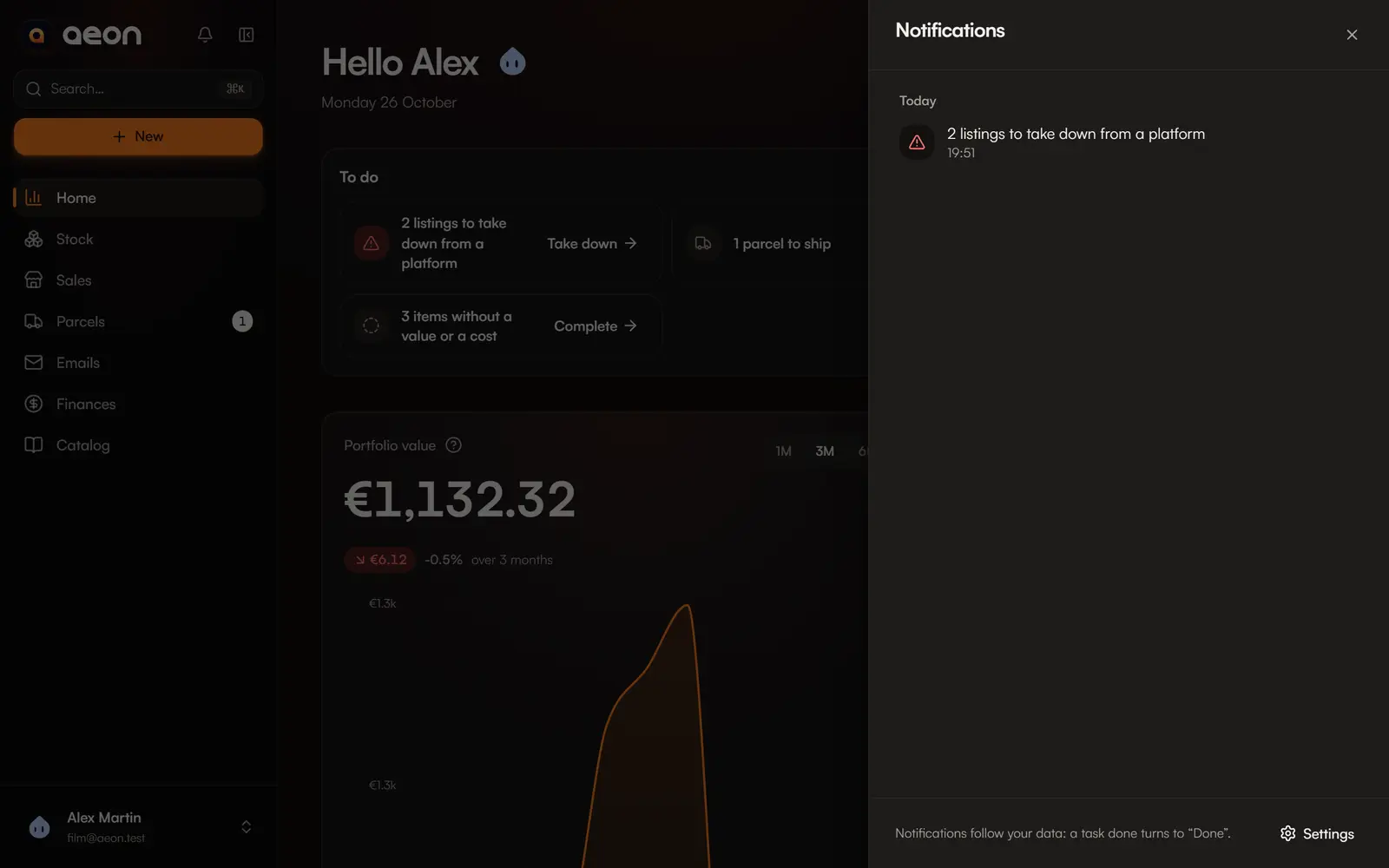
The bell (at the top on phones, in the sidebar on computers) shows the number of unread notifications. It opens the list, grouped by day: each line is a sentence (“2 parcels late to ship”) that opens the screen where you act.
Opening the bell marks everything read. A task done stays visible for a while, greyed out, marked Done: the list follows your data.
What is notified
| Notification | Opens |
|---|---|
| Parcels late to ship / to ship today | Parcels › To ship |
| Listings to take down from a platform | Sales, listings to take down |
| Purchases late to arrive | Parcels › To receive |
| eBay sales to record | eBay sales |
| Parcel updates from your emails to confirm | Parcels, email tracking |
| URSSAF declaration to do | Home |
| Reservation requests to answer | Catalog › Requests |
| DAC7 threshold almost reached / reached | Finances › Marketplace thresholds |
Drafts, old stock and records to complete stay on Home: useful, but not worth interrupting you.
On your phone or computer
Get these notifications even with the app closed. Set them up in Account › Notifications (or Settings in the bell).
On iPhone and iPad: install the app first
Add Aeon to your home screen and open it from its icon (iOS 16.4 or later). See Install the app.
Turn on for this device
The browser asks for permission, only at that moment.
Then:
- Devices receiving notifications: the list of your devices, each removable;
- What to receive: one switch per kind of notification, all on by default;
- Do not disturb: a time range (France time). What comes in meanwhile is sent at the end, if still relevant.
What a notification contains
Counts and marketplace names, never an amount or an item name. A notification opens the exact screen in the app.
If notifications are blocked in your browser, allow them in the site settings, then come back to Account. If your server has not turned push notifications on, Account says so: they stay visible in the bell.
The email summary
Email summary: Off (default), Daily (every morning around 8:00) or Weekly (Monday morning around 8:00).
- A short email with what is waiting for you, urgent items first, each line leading to its screen.
- Nothing to say, nothing sent: no email when nothing is waiting.
- A one-click unsubscribe link at the bottom of each email.