'%20fill-rule='evenodd'%20d='M171.52-16.97H86.06q-35.76%200-60.91-25.15Q0-67.27%200-103.03q0-35.15%2025.15-60.61%2025.15-25.45%2060.91-25.45%2035.15%200%2060.3%2025.45%2025.16%2025.46%2025.16%2060.61v86.06M86.06-146.06q-18.18%200-30.61%2012.73-12.42%2012.72-12.42%2030.3%200%2018.18%2012.42%2030.61Q67.88-60%2086.06-60q17.58%200%2030.3-12.42%2012.73-12.43%2012.73-30.61%200-17.58-12.73-30.3-12.72-12.73-30.3-12.73'/%3e%3c/svg%3e%3c/svg%3e)
Find your way around
The app's sections, the + button, search, the bell and display settings.
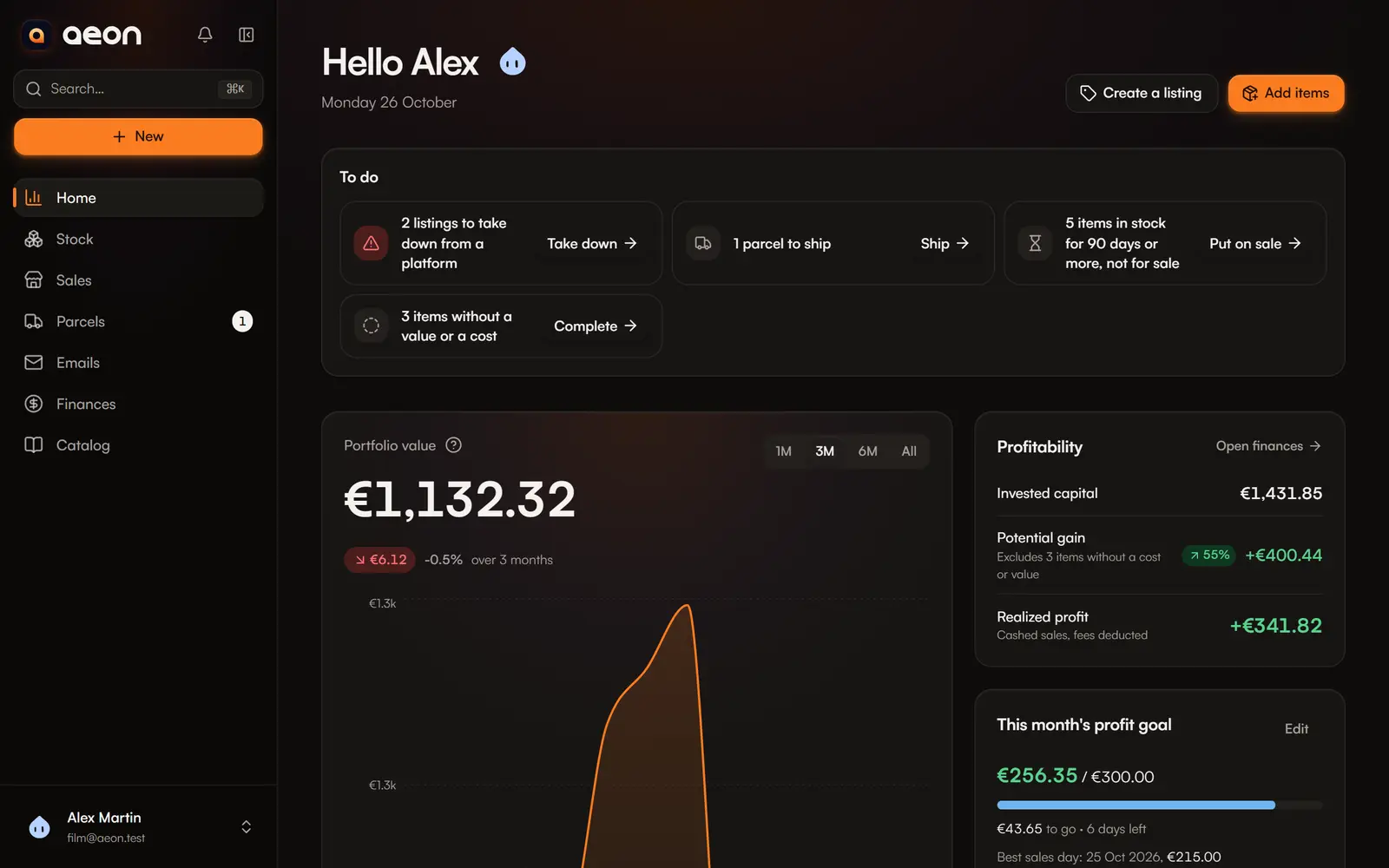
The sections
| Section | What it is for |
|---|---|
| Home | What is waiting for you (To do), your stock value and your results. See Home. |
| Stock | All your items, their purchases, their value and where they are stored. |
| Catalog | Selections of items to share through a public link or as a PDF. |
| Sales | Your listings, across platforms, and your sales history. |
| Parcels | Sales to ship and purchases to receive. |
| Emails | Your mailbox, to import orders and follow your parcels. |
| Finances | Realised profit, expenses, DAC7 and micro-enterprise tools. |
| Account | Profile, security, notifications, integrations and your data. |
On a computer, every section is in the sidebar. On a phone, the bottom bar gives Home, Stock, Sales and Parcels. Catalog, Emails, Finances and Account are in your account menu (your character, top right).
The + button
The + button (New on a computer) gathers what you can create, wherever you are:
- Add items: one item or several purchase lines;
- Record a sale: sell stock, even without a listing;
- Create a listing: one item or a bundle for Vinted, eBay…;
- New expense: shipping, packaging, tools…
On a phone, two tools sit under these four actions: Quick capture and the Purchase calculator.
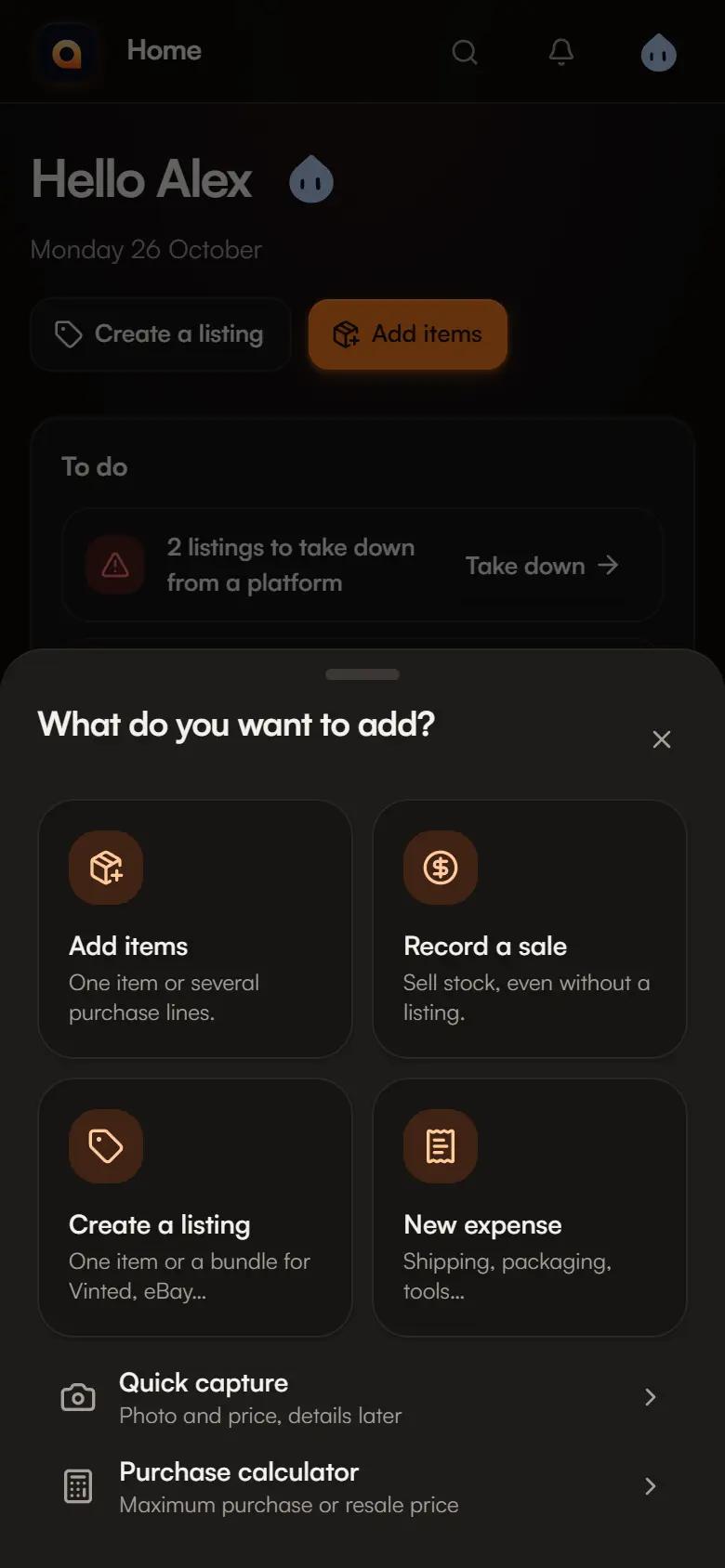
The action opens over the current page: you do not lose your place.
Filling in a dialog
Related fields sit side by side when the dialog is wide enough, then stack on a phone. Hints stay below their field; save and cancel actions stay at the bottom of the form while you scroll. Open collapsed details by selecting their heading. Closing an edited form asks you to confirm discarding your changes.
Search everywhere
Search finds an item, a listing, a sale or an action (“scan”, “import”, “calculator”…) and opens the right screen directly.
- On a computer: Ctrl + K (⌘ + K on a Mac), or / when you are not in a field.
- On a phone: the search icon at the top of the screen.
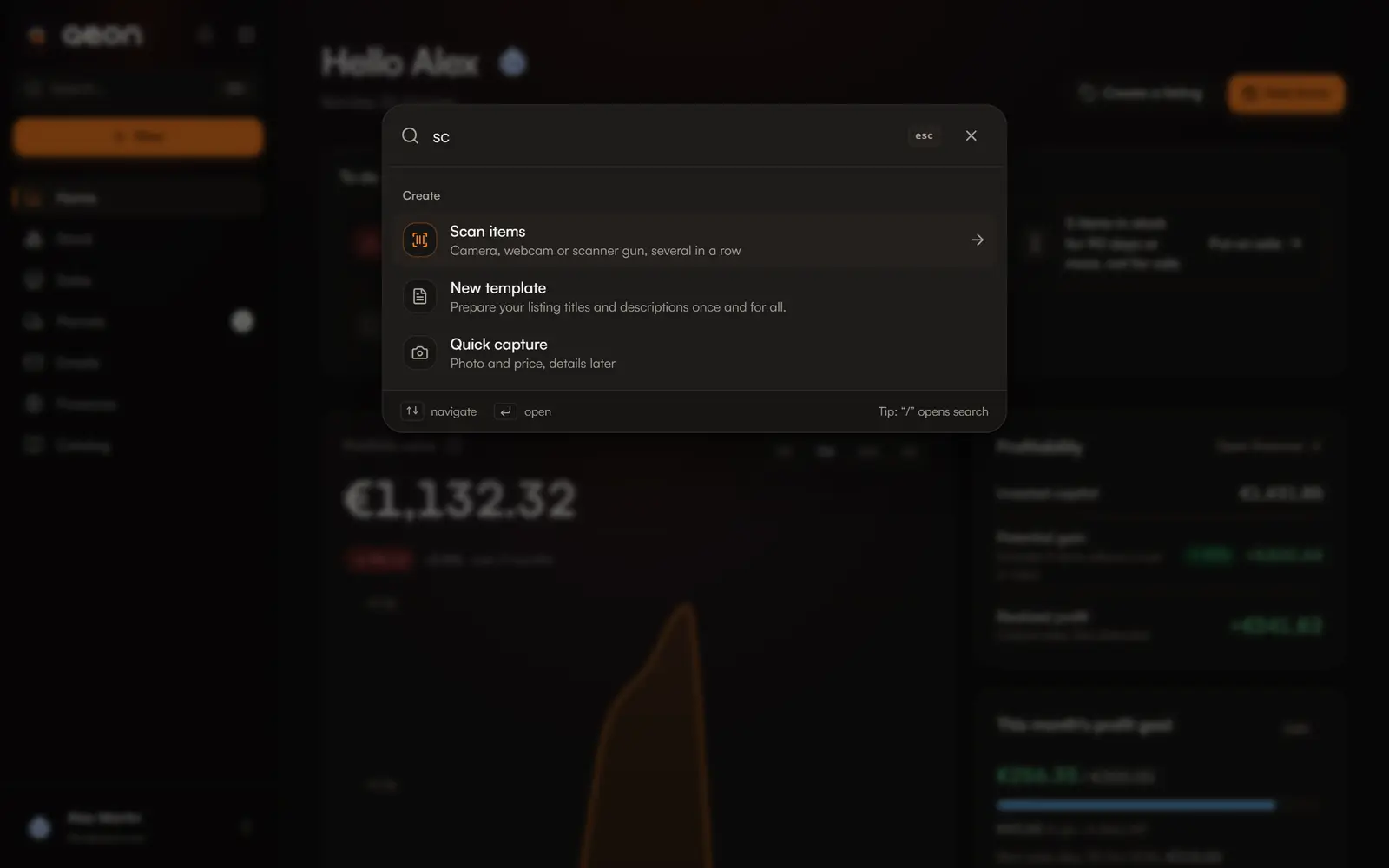
Type at least two characters to search. Less frequent actions (bulk purchase, spreadsheet import, wishlist, stock age…) are also here.
The bell
The bell shows what needs your attention: parcels to ship or late, listings to take down after a sale, late purchases, eBay sales to record, DAC7 thresholds. Each line opens the screen where you act. See Notifications.
Display, language and what's new
Your account menu lets you pick the theme (Dark or Light), the language (French or English), and open What's new, the list of recent improvements. A dot flags unread updates.