'%20fill-rule='evenodd'%20d='M171.52-16.97H86.06q-35.76%200-60.91-25.15Q0-67.27%200-103.03q0-35.15%2025.15-60.61%2025.15-25.45%2060.91-25.45%2035.15%200%2060.3%2025.45%2025.16%2025.46%2025.16%2060.61v86.06M86.06-146.06q-18.18%200-30.61%2012.73-12.42%2012.72-12.42%2030.3%200%2018.18%2012.42%2030.61Q67.88-60%2086.06-60q17.58%200%2030.3-12.42%2012.73-12.43%2012.73-30.61%200-17.58-12.73-30.3-12.72-12.73-30.3-12.73'/%3e%3c/svg%3e%3c/svg%3e)
Record a sale
Enter what you actually received, your fees and postage, for an exact profit. Then correct or refund later.
A recorded sale takes the units out of stock, feeds your results and creates a parcel to ship.
Two ways to sell
| Situation | How |
|---|---|
| The item was in a listing | Sold on the listing, in Sales. |
| A sale without a listing (in person, fair, direct buyer) | + button › Record a sale, or Sell on the item's record. Tick several items if they go together: one sale, one parcel. |
Finalize the sale
Quantity sold
You can sell some of a listing's units: it then stays active with the rest. For a bundle, enter each item's quantity (0 for an item that is not part of this sale).
Where it sold
For a listing published on several platforms, choose where it sold (Sold on). That platform's price and shipping deadline are used.
Total sale amount
What you actually received for the units sold, before fees. Do not enter the unit price. Shipping charged to the buyer is part of this amount.
Seller-paid shipping
The real shipping cost you pay. Do not also add it to your expenses.
Fees for this sale
The platform's fees. Aeon estimates them from your last sale on the same platform; correct them if needed. Enter 0 if there are none. In person: no fees, no postage.
Date and shipping
The sale date, then the Shipping section:
- To ship, with the Ship by deadline. For Vinted, 5 business days are prefilled; check the platform's deadline.
- In person / no shipping.
Check the result and confirm
Aeon shows the net received, the purchase cost and the sale profit. Confirm sale.
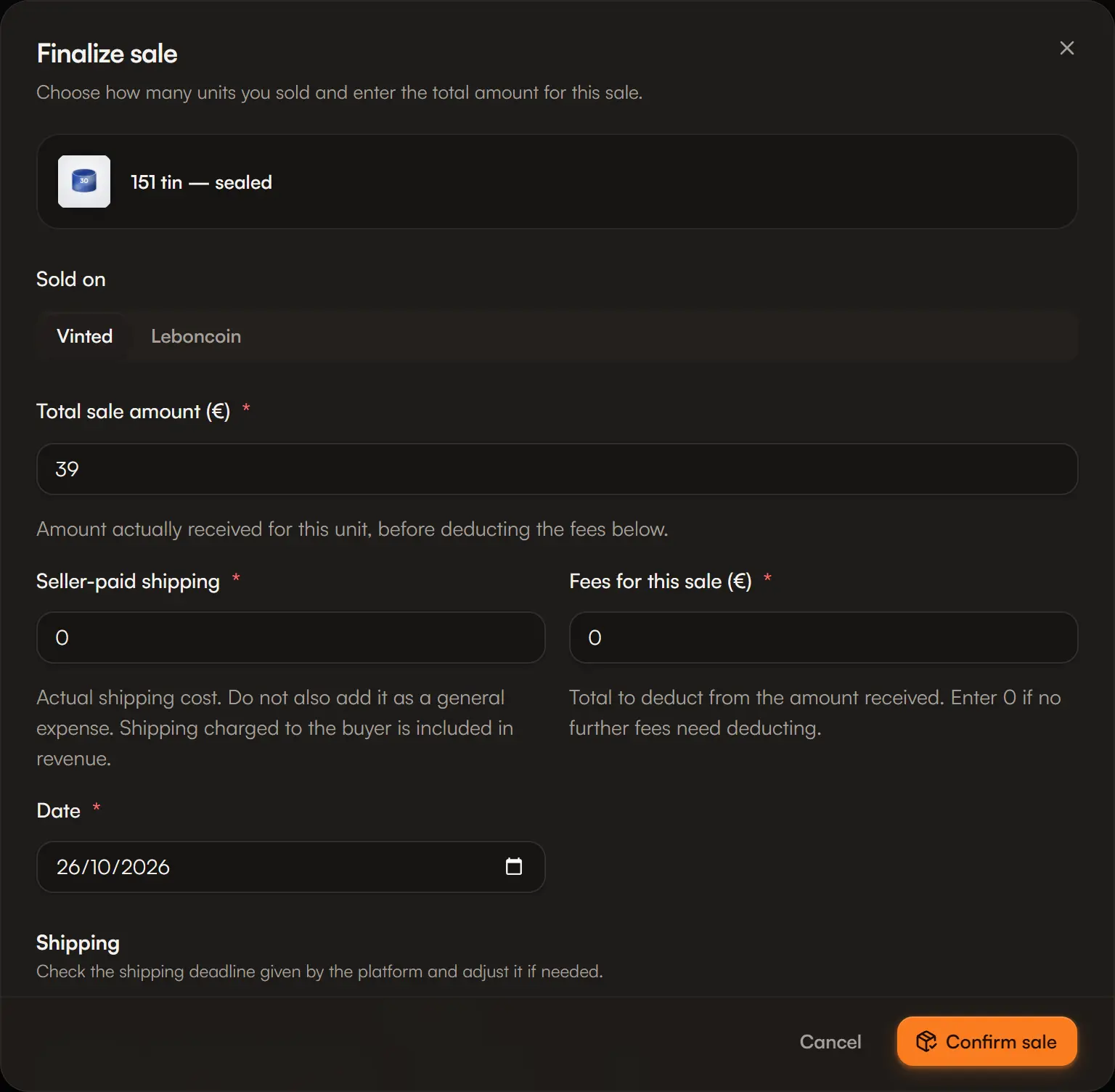
After the sale: stock is adjusted, a parcel appears in Parcels › To ship, and copies still online move to To take down.
Purchases used
Units sold are taken automatically from the oldest received purchases. Review or change the purchases used lets you choose where they come from: the profit uses their real cost. Under each line, Pick from: reminds you where the item is stored.
Selling what has not arrived yet
You can sell ordered or pre-ordered units. Aeon warns you: mind the platform's shipping deadline.
Find a sale
Sales › Completed sales lists your sales, with a search and filters: platform, Open disputes, Refunded, Cancelled.
After the sale
A sale's menu offers four actions:
| Action | When to use it | Effect |
|---|---|---|
| Correct entered details | An amount, fees or a date entered by mistake. | Stock and quantity sold do not move. The correction history keeps before and after. |
| Cancel an erroneous sale | The sale should never have been recorded. | The sale leaves your results and its units go back to their original purchases. Only for sales without a refund or dispute, not shipped yet. |
| Record a customer refund | You refunded the buyer, fully or partly. | The refunded amount is deducted from the result. If the item came back, tick The buyer sent the item back: it returns to stock at its original cost. |
| Track a dispute | A problem is ongoing, with no refund so far. | Open or resolved status, with a note. |
For a customer return, use the refund, not the cancellation.
Micro-entrepreneur? A sale can also get an invoice.