'%20fill-rule='evenodd'%20d='M171.52-16.97H86.06q-35.76%200-60.91-25.15Q0-67.27%200-103.03q0-35.15%2025.15-60.61%2025.15-25.45%2060.91-25.45%2035.15%200%2060.3%2025.45%2025.16%2025.46%2025.16%2060.61v86.06M86.06-146.06q-18.18%200-30.61%2012.73-12.42%2012.72-12.42%2030.3%200%2018.18%2012.42%2030.61Q67.88-60%2086.06-60q17.58%200%2030.3-12.42%2012.73-12.43%2012.73-30.61%200-17.58-12.73-30.3-12.72-12.73-30.3-12.73'/%3e%3c/svg%3e%3c/svg%3e)
Import a spreadsheet
Bring your stock in from Excel, Google Sheets or a CSV, with your own column names. Up to 5,000 rows.
Arriving with a stock file? The import reads it as it is: your columns, your dates, your suppliers. Nothing is saved before the last step.
Open Stock › … › Import a spreadsheet, or search for “import”.
You can also choose Import a spreadsheet from the empty Home or Stock screen after completing or skipping setup.
The four steps
File
Choose an Excel (.xlsx), CSV or TSV file (10 MB maximum), or paste cells copied from your spreadsheet.
- From Google Sheets: File › Download, then Excel or CSV.
- A workbook with several sheets? Choose the sheet to import.
- The first row contains the column names is ticked by default. Untick it if your file starts with data right away.
Columns
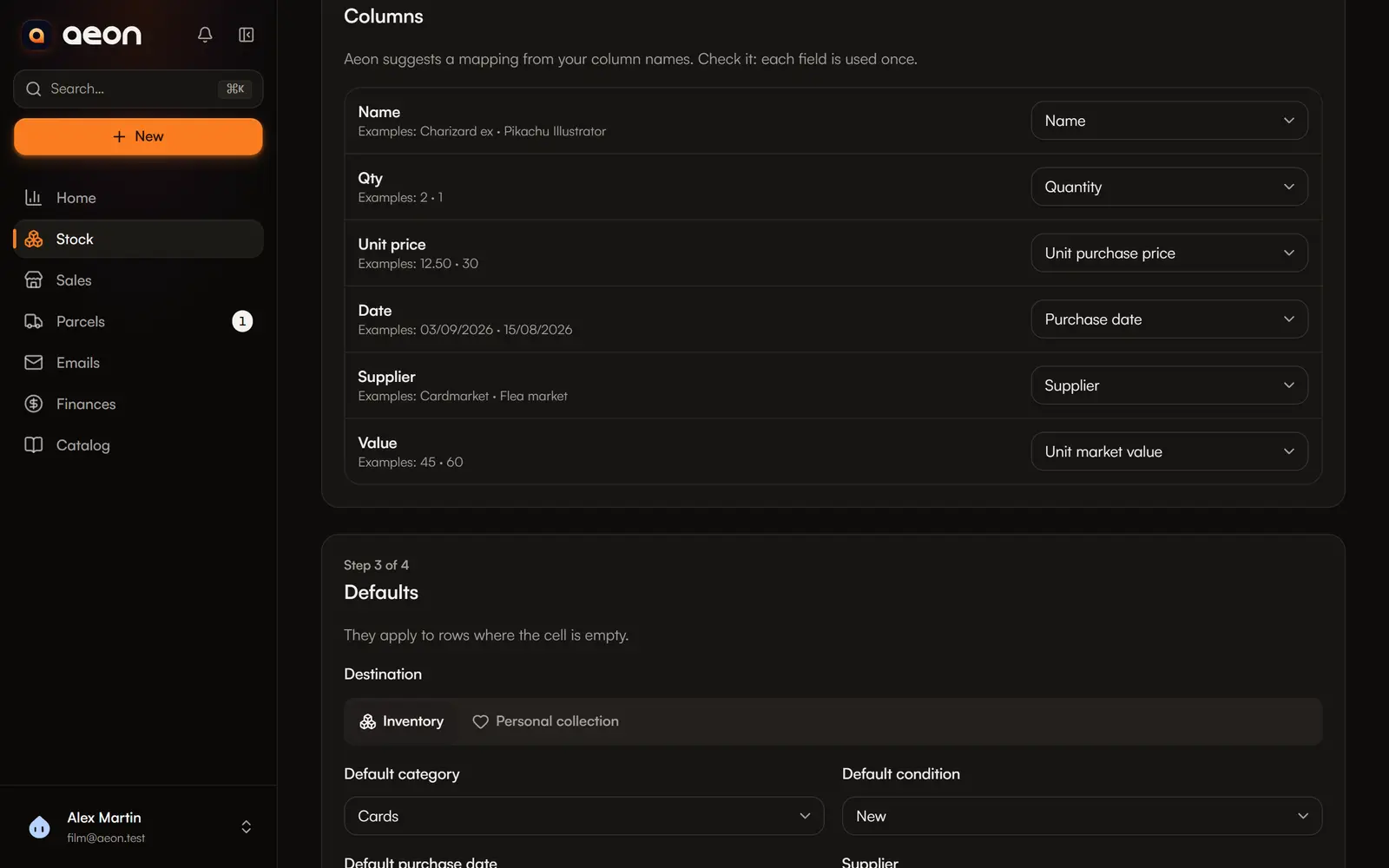
For each column of your file, Aeon shows two sample values and suggests a field under Use as: name, category, condition, quantity, unit or total purchase price, purchase date, supplier, unit market value, storage place, barcode, note, and the categories' details (game, set, number, language, brand, model, size…).
Check the suggestion. The name is required, and each field is used only once. A useless column? Ignore.
The mapping is remembered on this device: the next file with the same columns reuses it.
Defaults
They apply to rows whose cell is empty:
- Destination: resale inventory or personal collection;
- Default category and Default condition;
- Default purchase date (empty: unknown date) and supplier (empty: none).
If your Category column holds values that are not categories of your account, Aeon asks what each one means (Categories to match).
The destination initially follows the space opened in Stock. From Home or the combined stock view, it follows your account's default space. You can change it before importing.
Check and import
Aeon shows how many rows are ready and how many have an error. In the table, each faulty cell is underlined with its reason; Only rows with an error filters the list.
Import N rows runs the import, in batches of 100, with a progress bar. Rows with errors are left out, and the button says so.
At the end: “N items added to Inventory”, See the items, and the report of left-out rows if any.
The review report
Download the review report gives a CSV with, for each error: the row, the column, the value and the reason. Fix your file, then import only the missing rows.
How Aeon reads your cells
| Field | Rule |
|---|---|
| Name | Required, 160 characters maximum. |
| Quantity | Whole number from 1 to 100,000. Empty = 1. |
| Prices | Written the way people write them: “12,50 €”, “1 234.56”. A total price is divided by the quantity. With both, the unit price wins. Empty = unknown cost, never 0. |
| Date | dd/mm/yyyy, dd-mm-yyyy, dd.mm.yyyy, yyyy-mm-dd, two-digit years (read as 20xx) and Excel date cells. A date in the future is an error. |
| Category | The name of one of your categories (case and accents ignored), a value you matched, otherwise the default category. |
| Barcode | A valid EAN or UPC. |
Each row creates a new item with its purchase: the import does not merge with your existing stock.
If the import stops
A connection error during an import? Keep this page open and choose Retry: saved batches are preserved and the same import resumes without duplicates.
Navigation within Aeon is blocked while the import is running. After an error, leaving requires confirmation. Reloading or closing the page may show a browser warning, but does not preserve the retry state. If you leave, check your stock before importing again: importing the whole file again can create duplicates. A response error does not necessarily mean that the last batch was not saved.
Limits
- 5,000 rows and 10 MB per import: beyond that, split your file.
- Formulas are read by their computed value; merged cells are read as empty, except the first one.
- Past sales cannot be imported.