'%20fill-rule='evenodd'%20d='M171.52-16.97H86.06q-35.76%200-60.91-25.15Q0-67.27%200-103.03q0-35.15%2025.15-60.61%2025.15-25.45%2060.91-25.45%2035.15%200%2060.3%2025.45%2025.16%2025.46%2025.16%2060.61v86.06M86.06-146.06q-18.18%200-30.61%2012.73-12.42%2012.72-12.42%2030.3%200%2018.18%2012.42%2030.61Q67.88-60%2086.06-60q17.58%200%2030.3-12.42%2012.73-12.43%2012.73-30.61%200-17.58-12.73-30.3-12.72-12.73-30.3-12.73'/%3e%3c/svg%3e%3c/svg%3e)
The item record
Everything Aeon knows about an item, its purchases, its market value and the actions on its stock.
Click an item in Stock to open its record. It has its own address: you can bookmark it or come back to it with the Back button.
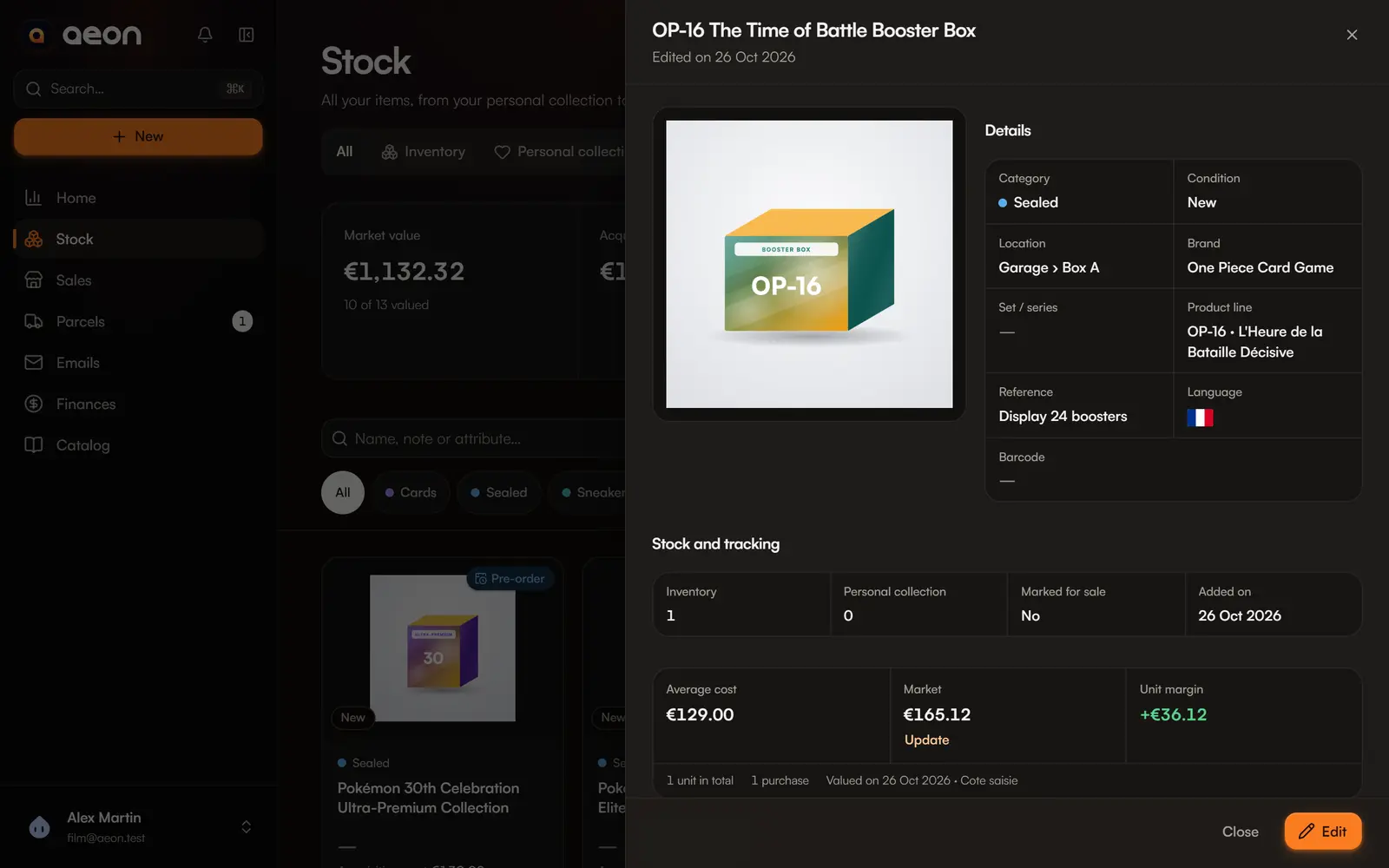
What the record shows
| Section | Content |
|---|---|
| Photos | The item's photos; the first one is the cover. |
| Details | Category, condition, location, internal reference, barcode, the category's details, the purchase receipt and extra attributes. |
| Stock and tracking | The space (inventory or personal collection), whether it is marked for sale, the date added. |
| Summary | Average cost, market value, unrealised margin per unit, and Update the market value. |
| Value history | How the market value changed (once there is one). |
| Active listings | Listings that hold the item, with Sell and Create a listing. |
| Purchases | Each purchase with its price, date, supplier and receiving state. |
| Stock and history | Available, reserved, and every movement: purchases, sales, transfers, removals, openings. |
Edit the item
Edit opens the editor. The most useful fields show right away; More details unfolds the rest (supplier, date, market value, characteristics, photos, selling…).
Category details
Each category has its own fields: game, set, number and language for cards; brand, model, size and colorway for sneakers; artist, album, format and pressing for vinyl… Only fill in what helps identify or sell the item.
Like the supplier and location, most of these fields suggest the values you already used: type a few letters to narrow the list, or type a new value. Sets are listed alphabetically, OP02 before OP10.
Cards get collector fields too: finish (Holo, Reverse…), edition, rarity, grading company, grade and certificate number. With a company and a grade, the card shows for example PSA 9 in place of its condition. Sneakers have a style code.
Extra attributes takes everything else, one key=value line per detail (ASIN, edition…).
Photos and receipt
Add photos (JPG, PNG, WebP) or an image link: it is copied into Aeon when you save. Choose the cover photo. The purchase receipt (PDF or image) stays attached to the item and appears in your micro-entrepreneur documents.
Already in your stock?
When you create an item that looks like a product you already have, Aeon says so (Already in your stock): you can Reuse its details, or Add the purchase to this item instead of creating a duplicate. The same product in another language or condition becomes a variant, grouped with the others in Stock.
Purchases
Each purchase keeps its price, date and supplier. When you sell, Aeon takes received units first, then the oldest purchase: the margin uses the real cost. See Purchase lots.
- Add a purchase: you bought the same item again. The new purchase is added with its own price.
- Mark received: on an ordered, in-transit or pre-ordered purchase.
- A purchase that comes from an opening shows “From” followed by the source's name.
Fix a purchase
A purchase's menu lets you edit its price, quantity, date or supplier, or delete it if it was entered by mistake.
What is protected
If units of the purchase were already used (sale, opening, transfer), its quantity and deletion are locked to keep the history: you can still correct the supplier, date and price. Sales already recorded keep their cost. Units reserved by an active listing must also stay in stock.
Act on the stock
| Action | What it does |
|---|---|
| Sell | Records a sale of the item. See Record a sale. |
| Move | Transfers units between inventory and personal collection. You choose which purchases they come from: their cost goes with them. |
| Open / split | Spreads the item's cost over its contents. See Bulk purchase and opening. |
| Remove from stock | Units damaged, lost, given away, kept for personal use or after an inventory correction. The reason and the cost leaving stock are recorded. |
| Print label | A label with a QR code. See Labels and QR codes. |
Units reserved by an active listing can be neither removed nor opened.
Update the market value
The market value is the item's unit value on the market. Update in the summary records a new value, dated, with its source.
To update many items at once: in Stock, filter on the Value to review status (no value or one older than 30 days) or Incomplete, then Update market values. Enter moves to the next item, Still correct confirms a value without changing it, and only changed values are saved.
Value history
As soon as an item has a market value, the Value history section shows a line of the unit value, the change since the first value and since the previous one, and the list of values with their date and source. A removed value shows as a gap, never as a zero.