'%20fill-rule='evenodd'%20d='M171.52-16.97H86.06q-35.76%200-60.91-25.15Q0-67.27%200-103.03q0-35.15%2025.15-60.61%2025.15-25.45%2060.91-25.45%2035.15%200%2060.3%2025.45%2025.16%2025.46%2025.16%2060.61v86.06M86.06-146.06q-18.18%200-30.61%2012.73-12.42%2012.72-12.42%2030.3%200%2018.18%2012.42%2030.61Q67.88-60%2086.06-60q17.58%200%2030.3-12.42%2012.73-12.43%2012.73-30.61%200-17.58-12.73-30.3-12.72-12.73-30.3-12.73'/%3e%3c/svg%3e%3c/svg%3e)
Add items
Record a purchase of one or more items, with its price, date, supplier and destination.
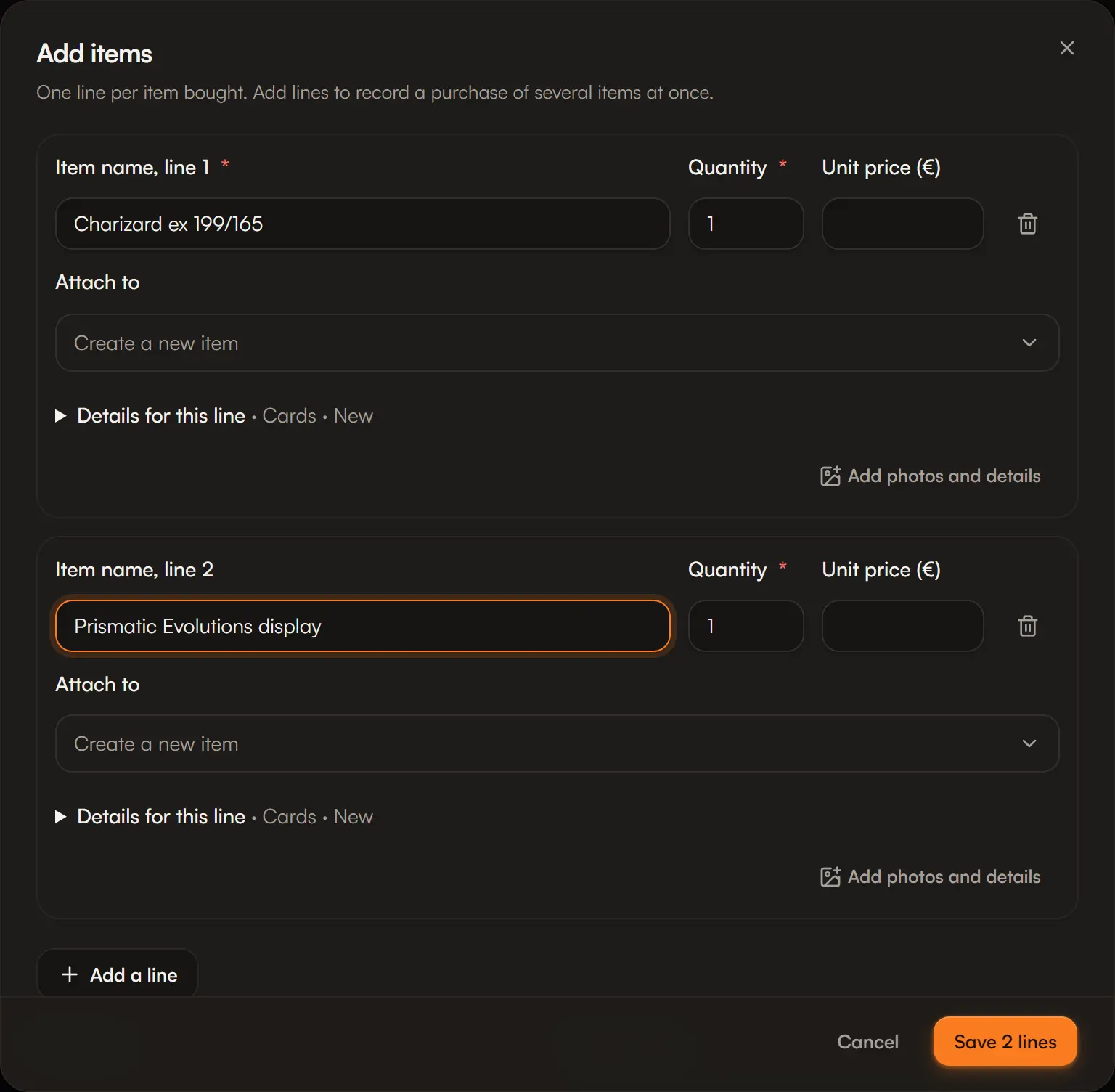
Add items is the main way to bring stock in. One line per item bought: you can record a purchase of several items at once.
Open it with the + button › Add items, from Stock, or from search.
Step by step
Fill in one line per item
For each line: the item name, the quantity and the unit price (€). The price is optional: an unknown price stays unknown, it is never counted as 0.
If the item already exists in your stock, the Attach to column adds this purchase to the existing item instead of creating a duplicate. Otherwise, keep Create a new item.
Add a line adds another one. The purchase total shows at the bottom.
Choose the destination
- Inventory: stock intended for resale. It counts in your results and tax documents.
- Personal collection: what you keep, tracked at market value, apart from your business.
Set the receiving state
By default the purchase is Already received. If it has not arrived yet, choose Ordered, In transit or Pre-order, with the expected arrival (or the release date of a pre-order). It will show in Parcels › To receive.
Complete the purchase details
Under Purchase details, the values shared by every line: category, condition, purchase date, supplier, location, the category's own fields (game, set, language…) and a shared note.
A line needs another category or condition? Open Details for this line on that line.
Save
Save N lines creates the items and their purchases. Each purchase keeps its price, date and supplier: that is how Aeon computes the real margin when you sell. See Purchase lots.
Photos and details of an item
Add photos and details on a line opens the item's full record: photos, purchase receipt, market value, detailed characteristics. See The item record.
A bundle bought at one price
You paid one price for several items? In Scan, import or split a total amount, choose Distribute a total purchase cost: the cost is shared across the items.
This simple split accepts received purchases in a single category. To split by each item's value, or to open a sealed product, use Bulk purchase.
Paste rows or import a small file
Still in Scan, import or split a total amount, Paste rows or import CSV accepts rows copied from a spreadsheet or a CSV/TSV file up to 2 MB.
Columns, in this order if you have no header: name, quantity, unit price, category, condition, game, set, card number, language. A template is available with Download CSV template. The rows are first added to the list for review: nothing is saved before you confirm.
A large file?
Beyond a few rows, or if your columns have their own names, use the spreadsheet import: up to 5,000 rows, Excel included.
Frequent questions
Leave the price empty. The item will be flagged as incomplete and its margin marked as estimated until you fill in the cost. See Incomplete purchase cost.
Attach the line to the existing item, or use Add a purchase from its record. Both purchases stay separate, each with its own price.
Correct the purchase from the item's record, Purchases section. See The item record.