'%20fill-rule='evenodd'%20d='M171.52-16.97H86.06q-35.76%200-60.91-25.15Q0-67.27%200-103.03q0-35.15%2025.15-60.61%2025.15-25.45%2060.91-25.45%2035.15%200%2060.3%2025.45%2025.16%2025.46%2025.16%2060.61v86.06M86.06-146.06q-18.18%200-30.61%2012.73-12.42%2012.72-12.42%2030.3%200%2018.18%2012.42%2030.61Q67.88-60%2086.06-60q17.58%200%2030.3-12.42%2012.73-12.43%2012.73-30.61%200-17.58-12.73-30.3-12.72-12.73-30.3-12.73'/%3e%3c/svg%3e%3c/svg%3e)
Labels and QR codes
Print labels for your boxes and binders; scanning the QR code opens the item.
Single cards, second-hand sneakers or vinyl often have no barcode. An Aeon label gives them one: stuck on the item, its box or its binder, its QR code opens the item's record directly.
The internal reference
Each item gets a short, readable reference, for example K7M-3QX, the first time it is needed (label, record). It never changes. It shows on the record under Internal reference, and search finds it.
Print labels
Choose the items
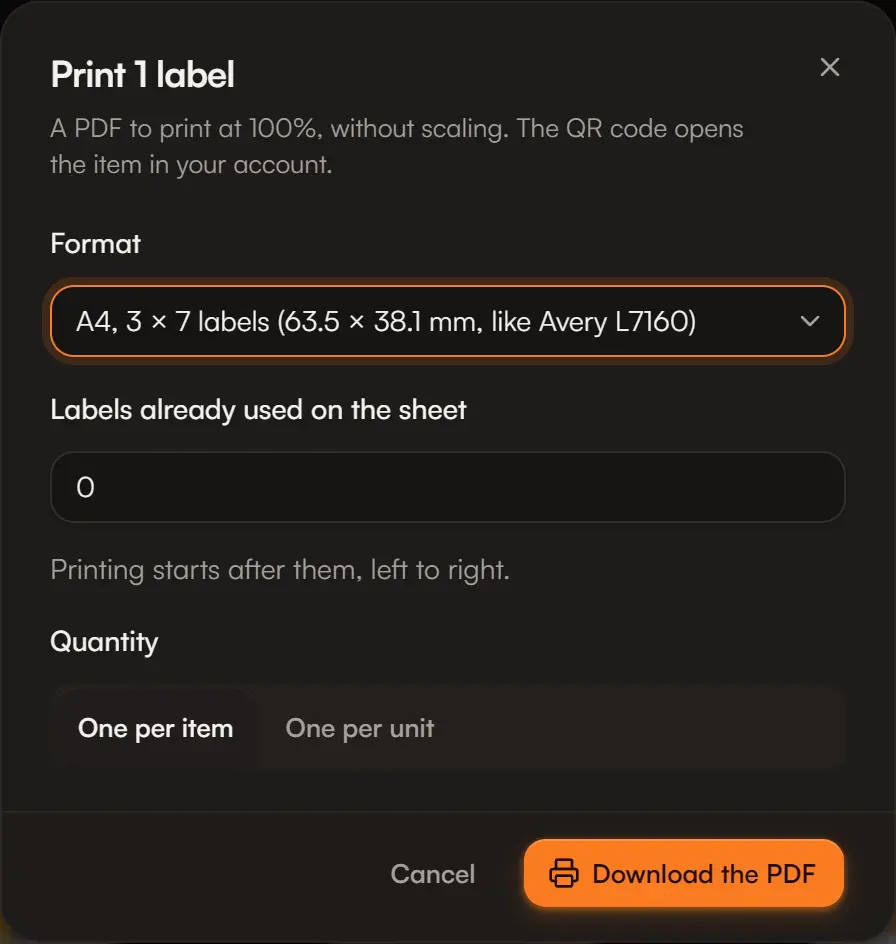
- One item: Print label on its record.
- Several: select them in Stock, then Print labels (500 items at most per PDF).
Choose the format
| Format | For |
|---|---|
| A4, 3 × 7 labels (63.5 × 38.1 mm) | Sheets like Avery L7160 |
| A4, 3 × 8 labels (70 × 37 mm) | 24-label sheets |
| A4, 5 × 13 small labels (38.1 × 21.2 mm) | Sheets like Avery L7651 |
| 62 × 29 mm roll | Brother DK-11209 and compatible |
Set up the sheet and quantity
- Labels already used on the sheet: printing starts after them, left to right. Handy to finish a sheet you started.
- Quantity: One per item, or One per unit.
Download the PDF
Print it at 100%, without scaling, otherwise the labels will not line up.
Each label carries the QR code, the reference in large type, the item's name and its storage place. The small format keeps the QR code, the reference and a one-line name.
Scan a label
- With the phone's camera: the QR code opens the item's record in Aeon.
- With Aeon's scanner (scanning, stock count): the label is recognised like a barcode.
Privacy
The QR code only holds the reference, never a price. It only opens the item if you are signed in to your account: anyone else sees “Label not found”.