'%20fill-rule='evenodd'%20d='M171.52-16.97H86.06q-35.76%200-60.91-25.15Q0-67.27%200-103.03q0-35.15%2025.15-60.61%2025.15-25.45%2060.91-25.45%2035.15%200%2060.3%2025.45%2025.16%2025.46%2025.16%2060.61v86.06M86.06-146.06q-18.18%200-30.61%2012.73-12.42%2012.72-12.42%2030.3%200%2018.18%2012.42%2030.61Q67.88-60%2086.06-60q17.58%200%2030.3-12.42%2012.73-12.43%2012.73-30.61%200-17.58-12.73-30.3-12.72-12.73-30.3-12.73'/%3e%3c/svg%3e%3c/svg%3e)
Organise your stock
Spaces, search, filters, storage places and actions on several items at once.
Stock shows all your items, with the market value, acquisition cost and potential gain of what you are looking at.
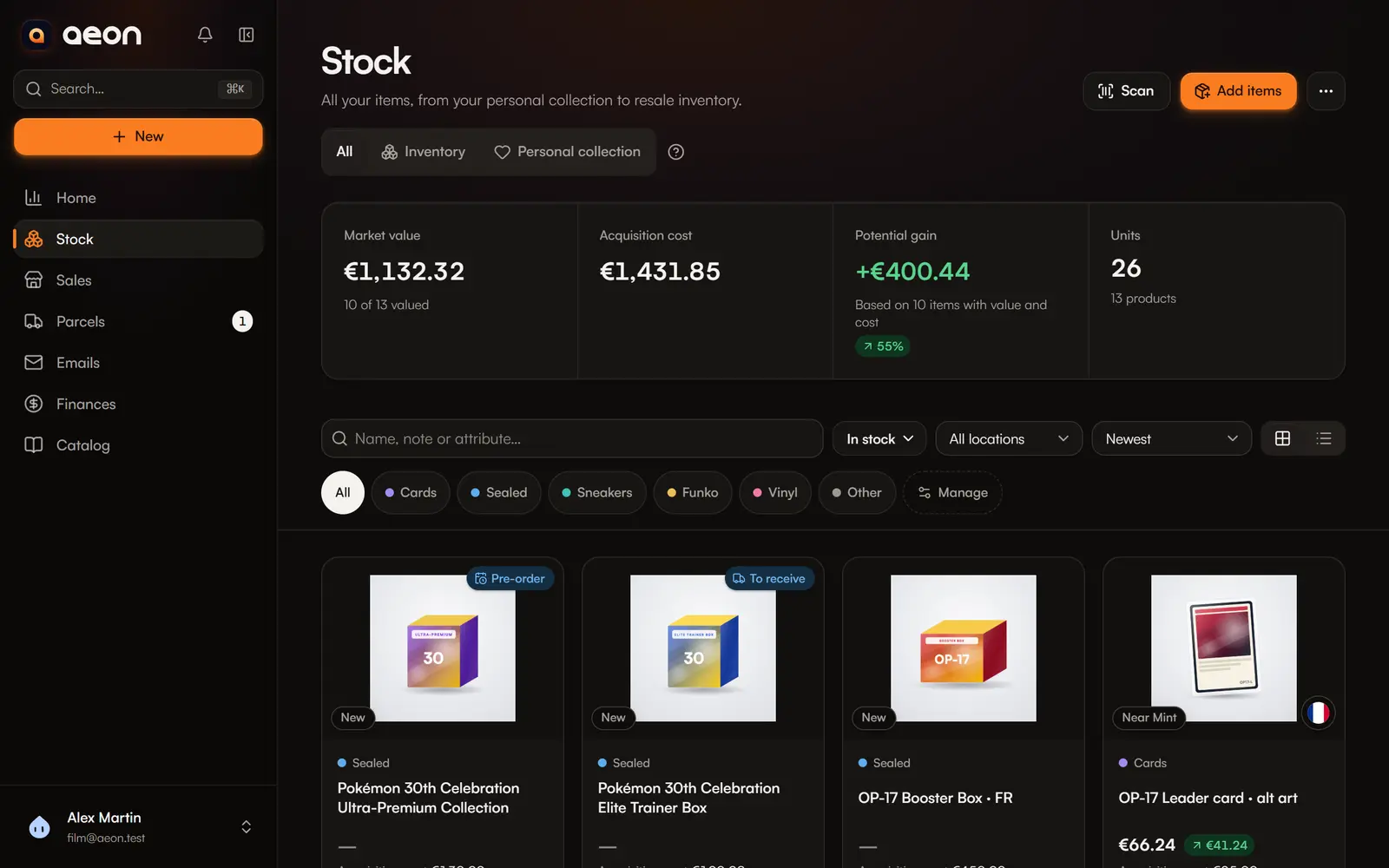
The spaces
At the top of the page, choose the space:
| Space | Content |
|---|---|
| Inventory | Stock intended for resale, with its value and unrealised margin. |
| Personal collection | The pieces you keep, tracked at market value. |
| All | All your items, from your personal collection to resale inventory. |
One item can have units in both spaces. Move (on the record or from an item's menu) transfers units from one space to the other, with their cost. See Inventory and personal collection.
Find an item
- Search: name, note or attribute. An exact barcode or a label reference work too.
- Category: the category chips at the top of the list. Manage opens the categories.
- Status: In stock, Available, Reserved, For sale, Out of stock, and to narrow down: Incomplete (no value or no cost), Value to review (no value or one older than 30 days), Captures to complete.
- Location: shows up as soon as an item has a storage place.
- Sort: newest, name A–Z, value descending, or Oldest in stock.
- View: Grid (photos) or Table (columns, location under the name).
Filters live in the page address: a shared or bookmarked filter reopens exactly the same. Reset filters goes back to the full view.
Storage places
The location says where the item physically is: “Garage › Shelf 2 › Box B”. It is free text; Aeon suggests the ones you already used.
- Fill it in on the item's record, or for a whole batch in Add items.
- When you sell and ship, Aeon shows Pick from: followed by the location, so you know where to go before packing.
- To file several items at once, select them, then Edit details.
- To check that a place matches reality, run a stock count.
Act on several items
Tick items (or Select all): an action bar appears at the bottom.
| Action | Effect |
|---|---|
| Create a listing | One listing with the selected items. |
| Edit details | Changes the category, condition, location… of the chosen items. Only filled fields change, with a before → after preview. |
| For sale / Remove from sale | Marks the items for sale, or not. |
| Add to catalogue… | Adds them to an existing or new catalogue. |
| Print labels | A PDF of labels with QR codes. |
| Export | The selected items as CSV. |
| Delete | Takes the items out of active stock. A sold item cannot be deleted. |
Esc clears the selection.
The Stock menu
The … button (More actions) at the top of Stock gathers:
- Import: the spreadsheet import;
- Export all stock (CSV): average cost, market value, total cost and total value per item;
- Quick capture: see Quick capture;
- Wishlist: see Wishlist;
- Count a place: see Count a storage place;
- Stock age: see Stock age.